
Git Basics and Single-Person Workflow
Last updated on 2026-03-18 | Edit this page
Overview
Questions
- What is version control and why should I use it?
- What are the basic git concepts I need to know?
- How do I work with a repository on my own?
Objectives
- Explain what git is and why version control matters
- Describe the difference between local and remote repositories
- Perform the core loop: edit → commit → push → pull
- Write meaningful commit messages
- Use a
.gitignorefile to exclude unwanted files
Why bother with version control?
This section was taken from Software Carpentry: Version Control with Git. by I. Gonzalez, D. Huang, N. Hejazi and K. Koziar (Version 04.03.2026) and slightly adapted.
We’ll start by exploring how version control can be used to keep track of what one person did and when. Even if you aren’t collaborating with other people, automated version control is much better than this situation:

We’ve all been in this situation before: it seems unnecessary to have multiple nearly-identical versions of the same document. Some word processors let us deal with this a little better, such as Microsoft Word’s Track Changes, Google Docs’ version history, or LibreOffice’s Recording and Displaying Changes.
Version control systems start with a base version of the document and then record changes you make each step of the way. You can think of it as a recording of your progress: you can rewind to start at the base document and play back each change you made, eventually arriving at your more recent version.
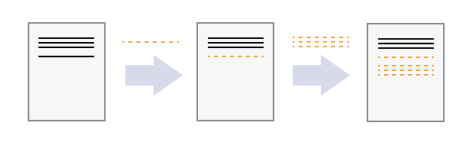
Once you think of changes as separate from the document itself, you can then think about “playing back” different sets of changes on the base document, ultimately resulting in different versions of that document. For example, two users can make independent sets of changes on the same document.
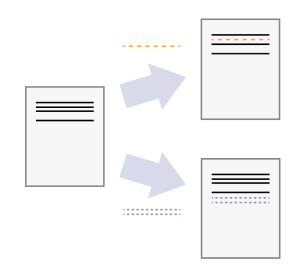
Unless multiple users make changes to the same section (i.e. text row) of the document - which would cause a conflict - versioning systems can automatically incorporate sets of non-conflicting changes into the same base document.
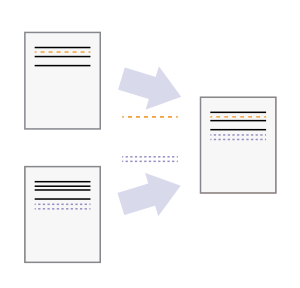
And this is where git comes into the game!
What Is Git?
 is a
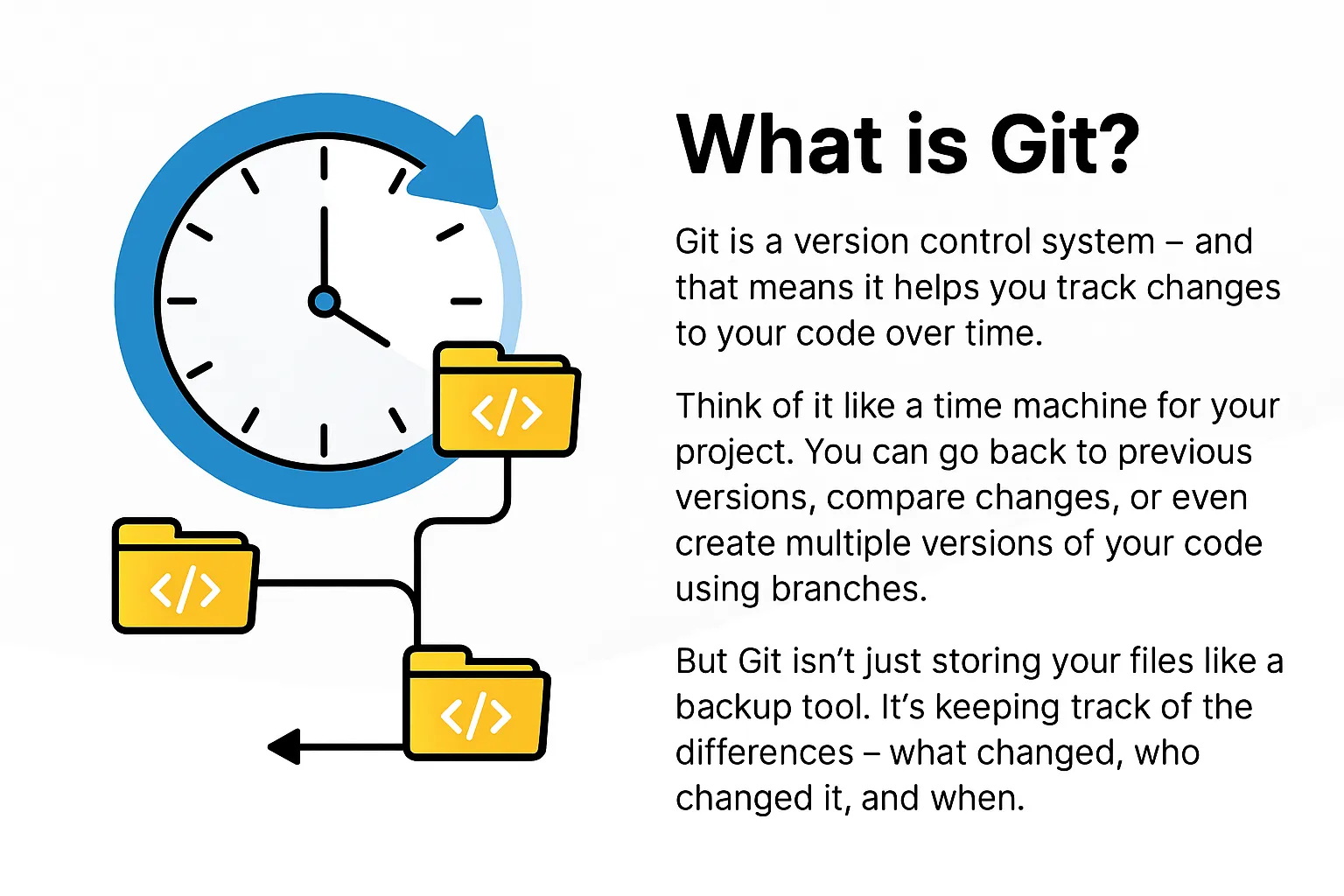
version control system — a tool that tracks changes to
your files over time. Think of it as an “undo history” on steroids: you
can go back to any previous version, see exactly what changed, and even
work on multiple versions in parallel.
is a
version control system — a tool that tracks changes to
your files over time. Think of it as an “undo history” on steroids: you
can go back to any previous version, see exactly what changed, and even
work on multiple versions in parallel.
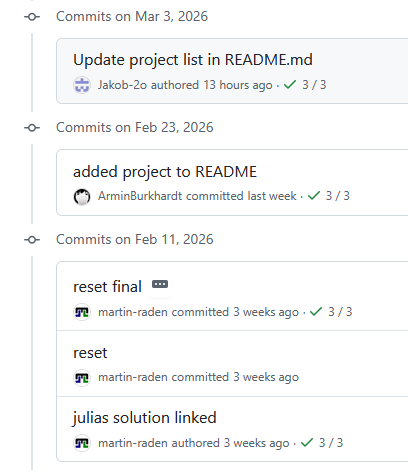
The following screenshot shows a git commit history with messages and timestamps. Each commit is a snapshot of the project at a point in time, allowing you to track the evolution of your work and understand the context of changes.
An important aspect of git is that it is managing not single files but entire repositories (or “repos” for short). A repository is eventually a directory that contain all your project files, subdirectories, and the complete history of changes therein. Thus, version control with git is not just about tracking changes to individual files, but about managing the entire project as a cohesive unit.
Given this, the first step in using git is to think in terms of projects rather than individual files. A project can be anything from a collection of scripts, data, and documentation for a research study, to a website, to a software application. All the files that belong to the project should be organised within a single repository, which git will then manage as a whole.
Why use version control?
- Reproducibility: every version of your work is saved and can be restored.
- Collaboration: multiple people can work on the same project without annihilating each other’s changes.
- Publishing: share your work publicly or with a team.
- Archiving: keep a permanent, citable record of your project.
What Is GitHub?
 is a web platform that hosts git repositories online. It adds
collaboration features such as pull requests, issues, and project boards
on top of git’s version control. So GitHub is not git itself, but a
service that uses git to manage repositories in the cloud. Its
collaborative features bring git’s power to the next level, making it
easier for teams to work together on projects and for individuals to
share their work with the world.
is a web platform that hosts git repositories online. It adds
collaboration features such as pull requests, issues, and project boards
on top of git’s version control. So GitHub is not git itself, but a
service that uses git to manage repositories in the cloud. Its
collaborative features bring git’s power to the next level, making it
easier for teams to work together on projects and for individuals to
share their work with the world.
- Git = the version control engine (runs on your computer).
- GitHub = the hosting service (stores your repository in the cloud).
Local vs Remote Repositories
Before we start working with git, it’s important to understand the difference between the local and remote repositories:
| Term | Meaning |
|---|---|
| Local repository | The copy of the project on your computer |
| Remote repository | The copy hosted on GitHub (often called origin) |
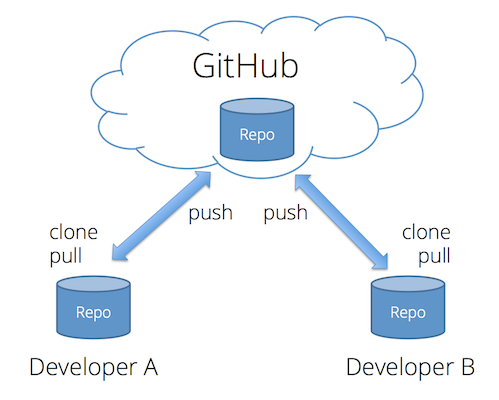
When you clone a repository, you download the remote copy of the project to your machine. From that point on, you will synchronise changes between the two copies using push (local → remote) and pull (remote → local) git actions. The same can be done by multiple people working on the same project, allowing for collaboration based on a synchronised central remote repository. This is one of the major advantages of using systems like git for file management.
Creating a Repository
To start using git, you need to create a repository for your project. This can be done in several ways.
Starting in GitHub
One way to start a project is to directly create a new repository on GitHub. This is useful if you want to start with a clean slate and have your project hosted online from the beginning.
To this end, you can go and log-in to GitHub, click on the “New” button in the repositories section, and follow the prompts to set up your repository.

In the subsequent form, you can
- choose a name for your repository (without blanks or special characters),
- add an optional description, and
- select the visibility (public or private).
The latter depends on whether you want to share your project with the world (public) or keep it private (private) and can be changed later on if needed.
Note: We recommend to start with a README file,
i.e. you can check the box “Add a README file” in the form.
This will create a README.md file in your repository with
some default content that you can edit later on. Documenting your
project (folders) with README files is a good practice as
it provides an introduction and overview of your project or respective
information for others (and for yourself in the future).
After creating the repository in GitHub, you can start working on it via the GitHub web interface. But to have the full power of git and to work with your files on your computer, you need to clone the repository to your local machine, which can be done using GitHub Desktop, an IDE or the command line as discussed later.
Starting locally using GitHub Desktop
Similarly, you can start by creating a local repository on your computer and then push it to GitHub later on.
To this end, you can open GitHub Desktop, click on “File” → “New
Repository”, and follow the prompts to set up your local repository. The
subsequent form also allows you to choose a name for your repository,
select a local path where it will be created, and optionally add a
README file etc.
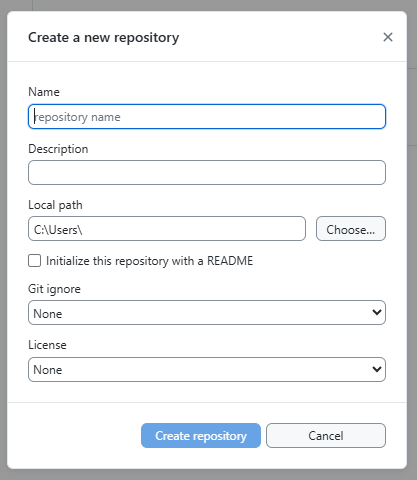
In contrast to the “GitHub online way”, this will create a local repository on your computer, but it will not be connected to GitHub yet. In order to connect it to GitHub, you need to click on “Publish repository” in the toolbar at the top of GitHub Desktop, which will upload your local repository to GitHub and create a remote copy there.
Taking care of existing local git repositories with GitHub Desktop
If you are already using git on your computer and have existing repositories, you can also add them to GitHub Desktop to manage them with the GUI. To this end, you can click on “File” → “Add Local Repository” and select the folder of your existing repository.
This is possible, since the whole information of the local repository
is stored within a hidden .git folder within the project
directory. The stored information is independent from the tool you used
to create the repository, so GitHub Desktop can read and manage any
repository created with any tool as long as it is a valid git repository
(i.e. it has a .git folder with the necessary
information).
Moving repositories
Since the whole local repository information is stored within the
.git folder and is related to the “inner layout” of your
project folder, you can move the project folder around on your computer
without affecting the repository information, as long as you keep the
.git folder intact within the project directory.
The Core Loop
Now that you have a repository set up, you can start working with it.
On the surface, your project directory doesn’t look different from any other folder on your computer, but it is now under version control with git. That is, it is now a working directory that is connected to a local repository (and potentially a remote repository on GitHub) and all changes you make to the files within this directory can be tracked and managed with git. The major difference is: you will find different things within the project directory dependent on the things you do with git. For instance, you can check the content of your project folder at different time points in your projects history… Cool, right?
Repository vs Working Directory
Note: the local repository is kind
of a local database of all the changes you make on all the files in your
project. It is stored within a hidden .git folder in your
project and controlled by git not the same as the files on your computer
that you edit and work with! In order to work with the files on your
computer, git treats the project’s directory as its working
directory that is a copy of the project files at a specific
point in time (and its respective commit). When you make changes to the
files, they are not automatically saved in the local repository until
you commit them. This is an important distinction to
understand as it allows you to control when and how your changes are
recorded in the history of the project.
In the end, the git workflow operates in three places:
- Working directory — where you edit files on your computer.
- Local repository — where your commits are stored on your computer.
- Remote repository — where your commits are stored on GitHub.
The interchange between these three places can be illustrated as follows by relating the git operations with a similar workflow without digital tools:
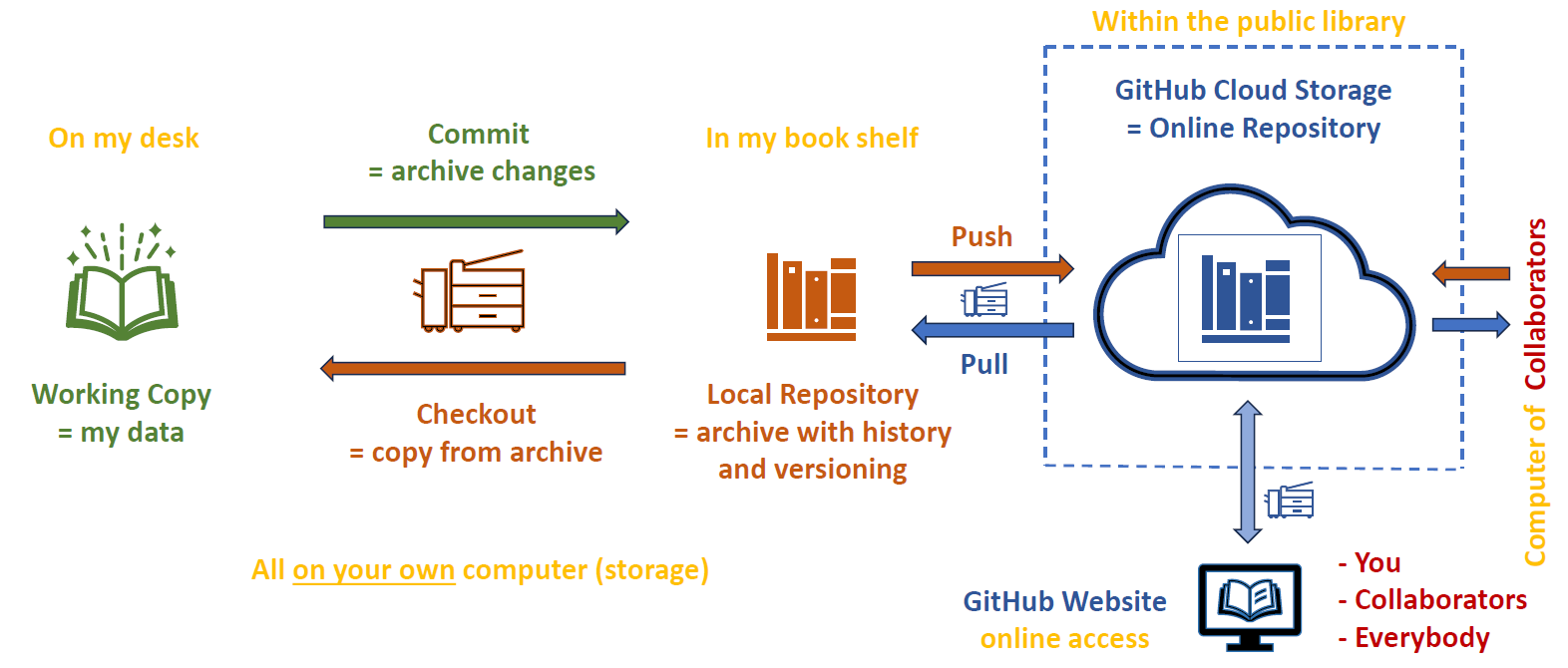
Therefore, the everyday git workflow follows four steps:
- Pull — get the latest changes from the remote (GitHub) repository before you start working. Note, this also updates your working directory!
- Edit — change files in your working directory. This is done with any tool and independent of git.
- Stage - select which of your files/changes you want to include in the next commit. This is an optional step that allows you to control how your commits are structured.
- Commit — save a snapshot of your changes with a descriptive message in your local git repository.
- Push — upload your recent commits from the local to the remote repository (on GitHub).
We strongly recommend to start your daily work by pulling the latest changes from GitHub to ensure you are working with the most up-to-date version of the project and to minimise potential conflicts later on.
Staging
Coming back to staging (step 2 in the list above). By
default, git will not automatically do version control for any of your
files. That is, you have to explicitly tell git which files and
changes you want to include into the repository! In git
nomenclature, this is called staging a file for commit and is
done with the git add command in the CLI or by checking the
files in GitHub Desktop or your IDE.
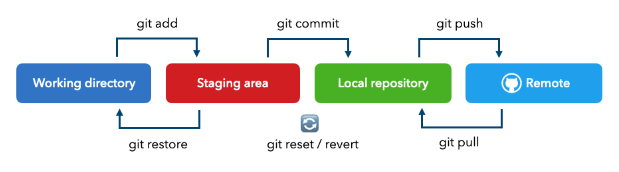
The same holds for all changes you make to files that are already under version control: you have to stage the changes before they are included in the next commit. This allows you to control how your commits are structured and to create small, focused commits that are easier to understand and review than large, monolithic commits. Also you can “store” only some of your changes in a commit and keep the rest for later commits, which can be useful if you are working on multiple features or changes at the same time.
The Core Loop in GitHub Desktop
So far you have seen how the git workflow operates in theory, but how do you actually do these steps in practice?
Eventually, git is a command-line tool and thus all operations are done within a command-line interface (CLI) such as Terminal or (Git) Bash. This looks like this:
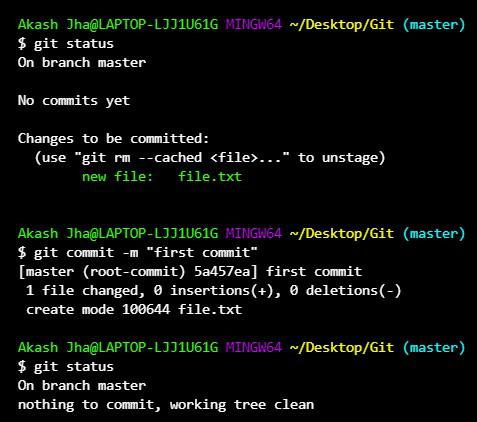
This is very efficient and useful when your are already comfortable with the CLI, but it can be intimidating for beginners. Therefore, we will use GitHub Desktop, a graphical user interface (GUI) that allows you to perform git operations without typing commands. The core loop of edit → stage → commit → push → pull can be done entirely within GitHub Desktop, which is more user-friendly for those new to git. The Screenshot shows the GitHub Desktop interface for a repository with some changes to be staged for commit.
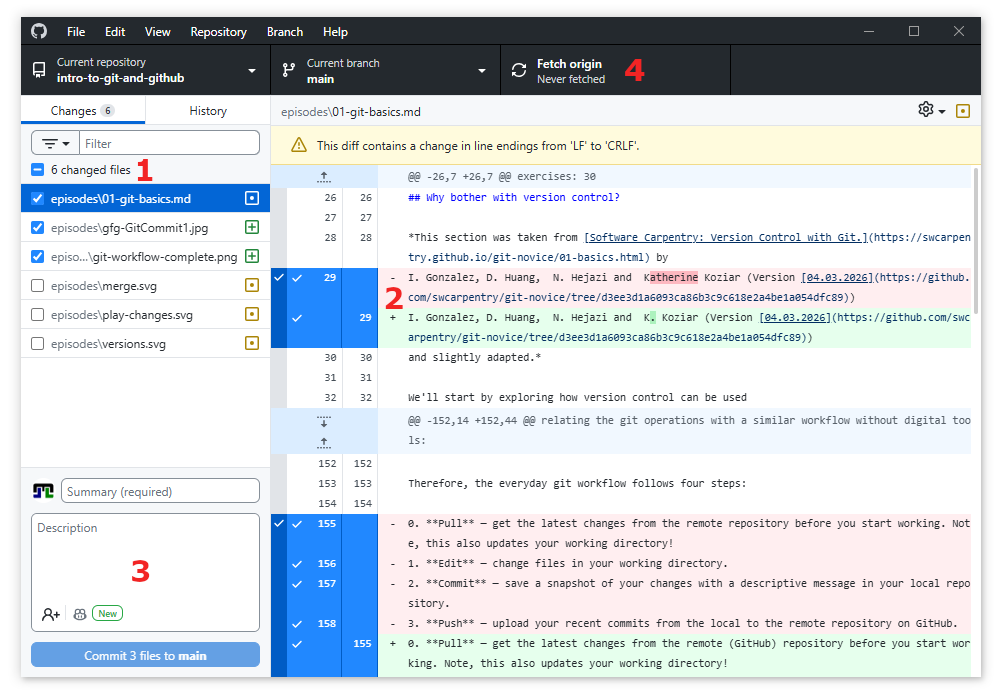
(1) Staging Changes
Within the screenshot from above, you find in the upper left corner (highlighted by the red (1)) the Changes tab, which lists all the files that have been modified in your working directory since the last commit. To stage a file for commit, simply check the box next to it.
The symbol on the right of the file name indicates the type of change:
- a green plus means the file is new,
- yellow dots indicate modified files, and
- a red minus identifies a file that was deleted.
(2) Reviewing Changes
You can also click on modified file names to see a visualization of the changes you made, which is highlighted by the red (2). Therein, added lines are in green and removed lines in red.
Note, since git works line by line, if you change a line, git will show the old version as removed and the new version as added, even if they are very similar. In that case, detailed changes are highlighted in dark hue within the added and removed lines to show exactly what was changed, as shown in the example of the modified file in the screenshot above.
It is recommended to always review your changes before staging and committing to ensure you are including the intended modifications and to catch any unintended changes.
(3) Committing staged changes
Once you have selected (staged) all files, you are ready to commit to your local repository. This is done by writing a short, descriptive Summary (commit message) in the box at the bottom left (highlighted by the red (2)) and then clicking the Commit to main button. The commit button itself shows the number of staged files for this commit as a final reminder of what you are about to commit.
Longer descriptions can be added in the box below the Summary, but it is recommended to keep the Summary concise and to the point, while using the description for more detailed explanations if necessary.
Once you click the commit button, the changes are saved in your local repository, along with your “commitment”, i.e. your user information, time stamp, commit message, etc.
(4) Pushing Changes
After committing, your changes are still only in your local repository on your computer. To share them with others or to have them available on GitHub, you need to push them to the remote repository.
This is done using the “remote” section in the toolbar at the top of GitHub Desktop, which is highlighted by the red (4) in the screenshot above.
There, you can
-
Fetch origin to check if there are new commits on
GitHub that you don’t have locally yet (for example, if you made changes
on GitHub via the web editor or if someone else pushed changes to the
same repository).
- Note: this does not change your local files within the working directory, it just checks for updates and shows you if there are new commits available on GitHub.
-
Pull origin to fetch and merge those changes into
your local repository and update your working directory with the latest
version from GitHub.
- Note: this has the potential to cause merge conflicts if there are changes on GitHub that conflict with your local changes, so it is recommended to pull before you start working to minimise this risk.
-
Push origin to upload your local commits to GitHub
so they are available in the remote repository and can be seen by
others.
- Note: you can only push commits that are already in your local repository, so you need to commit before you can push.
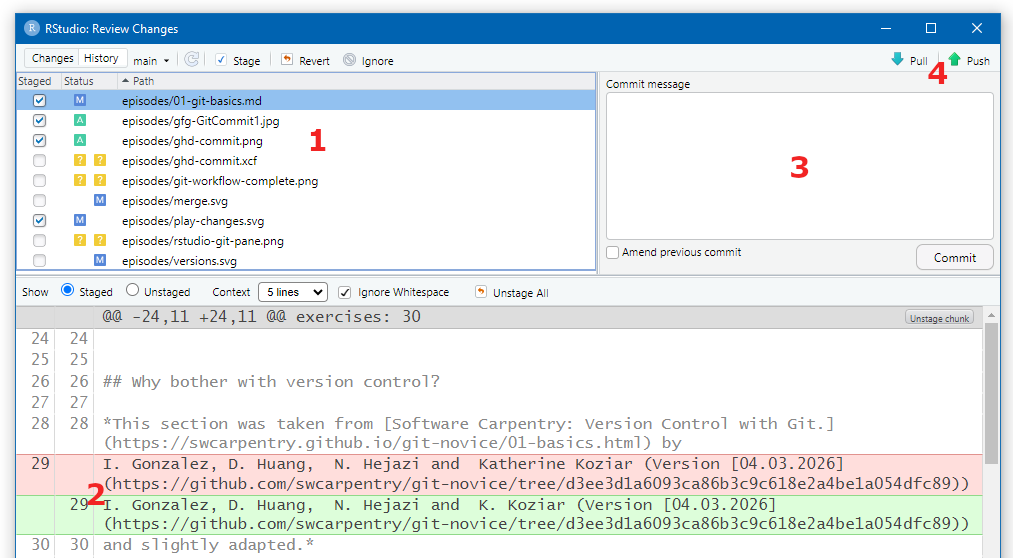
Most programming IDEs (including RStudio) have built-in git support that allows you to perform the core workflow without leaving the IDE. In RStudio, you can find the git pane in the upper right corner, which shows you the status of your files (modified, new, deleted) and allows you to stage, commit, and push changes to GitHub.
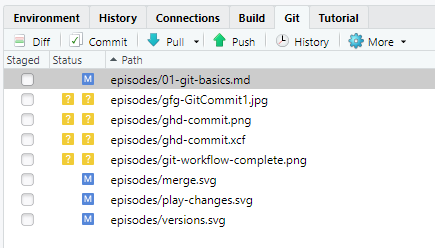
When you click on “Commit”, a new window opens where you can review your changes, write a commit message, and commit to your local repository similar to the workflow described for GitHub Desktop. After committing, you can push your changes to GitHub using the “Push” button either in the commit dialog or in the git pane.
BASH
# Clone a repository
git clone https://github.com/USERNAME/REPO.git

# Check what has changed
git status

# Stage changes for commit
git add filename.md      # stage a specific file
git add .                # stage all changes and new files

# Commit with a message
git commit -m "Add goals section to README"

# Push commits to GitHub
git push

# Pull changes from GitHub
git pull
Tracking Changes and History
Every commit is a snapshot in your project’s timeline. You can browse the history to see:
- what changed (which files, which lines),
- when it changed (date and time),
- who made the change, and
- why (the commit message).
Viewing History online in GitHub
Navigate to your repository on GitHub.
-
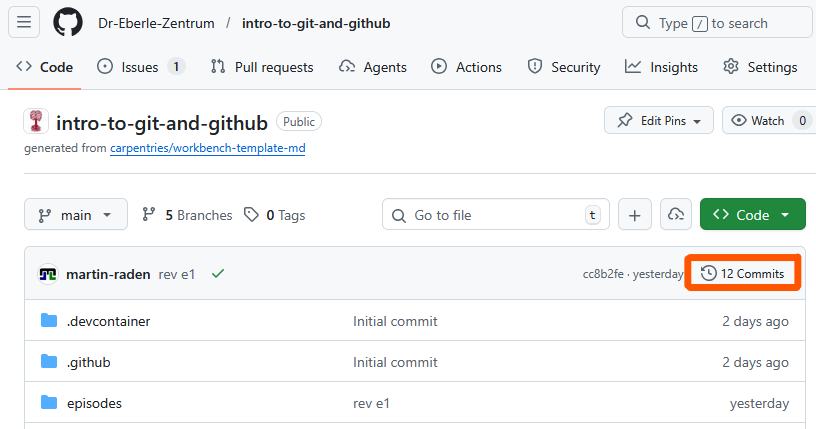
Within the Code view, click the Commits link above the file list.
- This shows the list of all commits within the repository, with their messages, authors, and timestamps.
- When selecting a single file, you can also click the
History button in the top right corner.
- This shows the commit history for that specific file, allowing you to see how it evolved over time and who made changes to it.
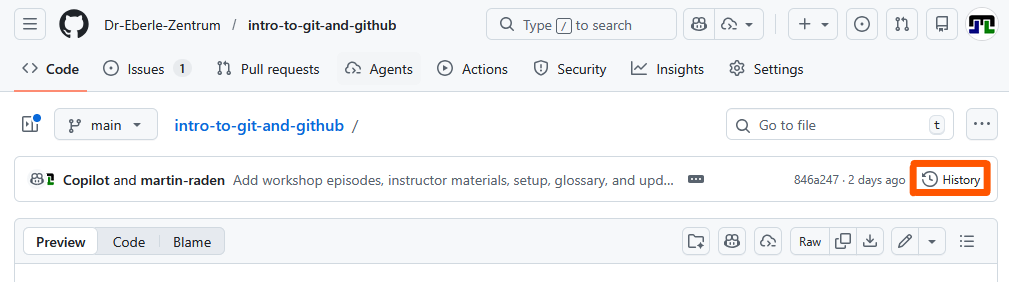
Both views allow you to click on individual commits to see the exact changes made in that commit.
Viewing History in GitHub Desktop
- Click the History tab in the left panel.
- Select any commit to see the files that were changed by this commit.
- Click on a changed file to see the diff of what was added (in green) and removed (in red) on the right

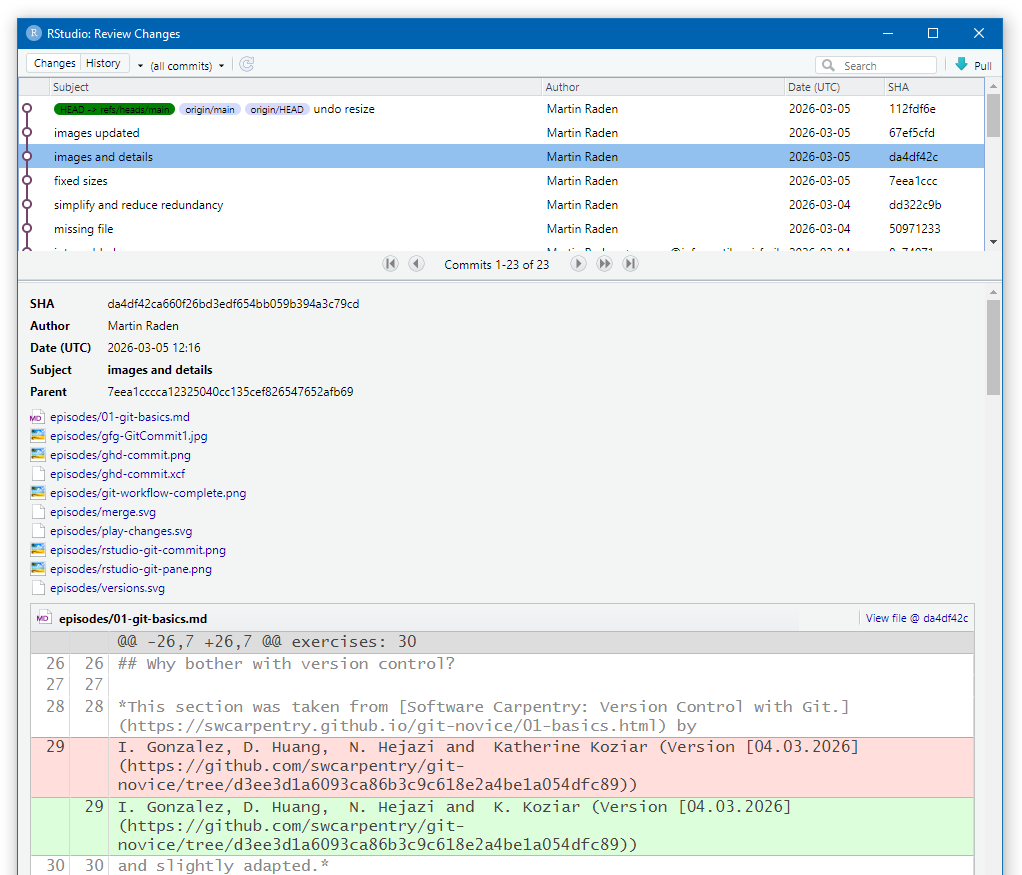
Similar views are also available in RStudio and other IDEs with git support, allowing you to browse the commit history and see diffs of changes directly within your coding environment.
What Makes a Good Commit?
Best practices for commits
- Small and focused: each commit should represent one logical change.
- Clear message: start with a short summary (≤ 50 characters), optionally followed by a blank line and more detail.
- Commit often: frequent small commits are easier to understand and undo than rare large ones.
Good examples:
Add project goals to READMEFix typo in introduction section
Bad examples:
Update filesabc
Ignoring Files with .gitignore
Not every file belongs in a repository. Build outputs, temporary files, and credentials should be excluded.
Thus, such files should never be considered for staging and committing.
In order to avoid accidentally including unwanted files in your
commits, you can create a .gitignore file in the root of
your repository (or within respective subdirectories) that lists the
files to ignore. To reduce list length and to cope with files that are
generated with different names (e.g. file1.txt,
file2.txt, etc.), you can use standard wildcards patterns
to ignore multiple files at once.
The following shows a sample .gitignore file that
ignores compiled files, editor backups, OS files, and credentials:
# Compiled files
*.exe
*.o

# Editor backups
*~
*.swp

# OS files
.DS_Store
Thumbs.db

# Credentials — never commit these!
secrets.yaml
.env
Ignore files via GitHub Desktop
In GitHub Desktop, ignoring files (and creating/updating a respective
.gitignore file) can be done by right-clicking on a file in
the Changes tab and selecting “Ignore this file” from the context menu.
This will automatically add the file name to a .gitignore
file in the root of your repository (or create one if it doesn’t exist
yet) and thus ignore it for future staging and committing
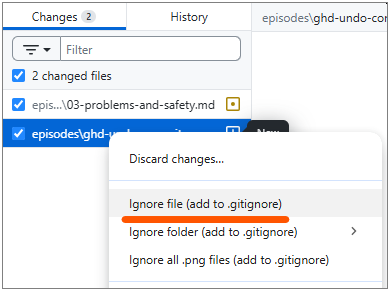
Note, the context menu also allows you to ignore all files with the
same extension by selecting “Ignore all .png files” (here to ignore all
PNG images), which is a convenient way to ignore multiple files at once
without having to edit the .gitignore file manually or the
need to explicitly ignore each file one by one.
Ignoring the folder (“Ignore folder” option) will add the folder name
to the .gitignore file with a trailing slash
(e.g. data/), which tells git to ignore all files within
that folder and its subfolders.
Fetch vs Pull
| Command | What it does |
|---|---|
| Fetch | Downloads new data from the remote but does not change your local files. |
| Pull | Fetches and merges the remote changes into your current branch. |
In GitHub Desktop, clicking Fetch origin checks for updates. If there are new commits, the button changes to Pull origin.
For more details, see Git fetch and merge.
Exercise: Explain in Your Own Words
Write one or two sentences explaining each of the following terms:
- Commit
- Push
- Pull
- Commit — a saved snapshot of changes in my project, together with a message describing what I changed and why.
- Push — uploading my local commits to the remote repository on GitHub so others (or other devices) can see them.
- Pull — downloading and merging commits from the remote repository into my local copy so I have the latest changes.
- Git is a version control system that tracks changes to files over time.
- GitHub hosts git repositories in the cloud and adds collaboration features.
- The core workflow is: pull → edit → commit → push.
- Good commits are small, focused, and have clear messages.
- Use
.gitignoreto keep unwanted files out of your repository.