
Summary and Schedule
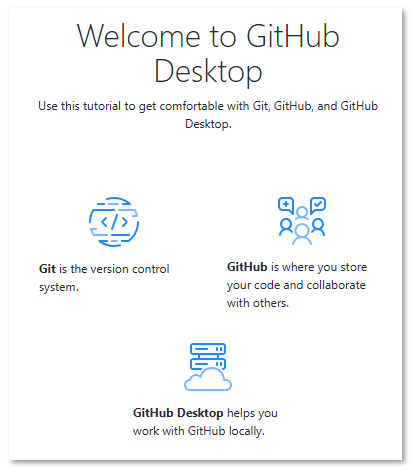
This is a beginner workshop on version control with git and GitHub using GitHub Desktop.
No prior experience with git, GitHub, or programming is required. The workshop follows a flipped classroom format: self-study materials are provided as episodes, and each session focuses on hands-on practice.
In the following episodes, the basic concepts of version control are introduced and practical exercises guide you through the most important workflows using GitHub Desktop as a graphical user interface.
Overview
Questions
- What is version control and why should I use it?
- How do I use git and GitHub for version control?
- How can GitHub Desktop help me manage my projects?
- How do I collaborate with others using branches and pull requests?
Objectives
- Understand the basic concepts of version control with git
- Create and manage repositories on GitHub
- Use GitHub Desktop to perform common git workflows (commit, push, pull)
- Collaborate via branches, pull requests, and forks
- Recognise and resolve simple merge conflicts
- Publish a website with GitHub Pages and automate tasks with GitHub Actions
| Setup Instructions | Download files required for the lesson | |
| Duration: 00h 00m | 1. Git Basics and Single-Person Workflow |
What is version control and why should I use it? What are the basic git concepts I need to know? How do I work with a repository on my own? |
| Duration: 01h 00m | 2. Collaboration, Branching and Pull Requests |
How can multiple people work on the same project without overwriting
each other’s changes? What is a branch and why should I use one? What is a pull request? |
| Duration: 02h 00m | 3. Problems, Safety, and Best Practise |
What common problems will I encounter when using git? How do I undo mistakes safely? How should I organise my repository and collaborate with others? |
| Duration: 03h 00m | 4. Publishing and Automation |
How can I publish a website from my repository? What are tags and releases? How can I automate tasks with GitHub Actions? |
| Duration: 04h 00m | Finish |
The actual schedule may vary slightly depending on the topics and exercises chosen by the instructor.
Setup and Preliminaries
Before the first session, please complete the following setup steps. This should take about 20–40 minutes.
1. GitHub Account
If you do not already have a GitHub account, register for free at github.com.
Enable Two-Factor Authentication (2FA)
Two-factor authentication is required for many organisational repositories, for security-relevant settings and is strongly recommended for every account.
- After login, go to github.com/settings/security.
- Under “Two-factor authentication”, click Enable.
- Follow the prompts (authenticator app or SMS).
- We recommend using an authenticator app (e.g. Aegis Authenticator, Google Authenticator, Authy) for better security.
- Save your recovery codes in a safe place (e.g. password manager, print-out, …) in case you lose access to your 2FA device.
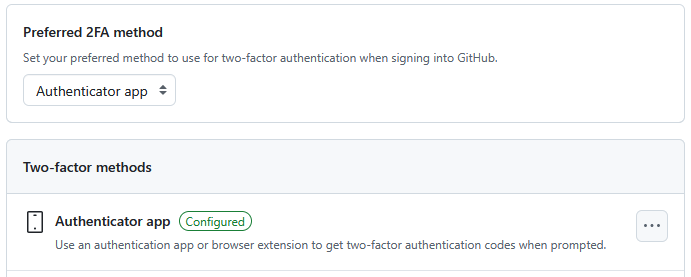
At the end, it should look like this:
2. Install GitHub Desktop
GitHub Desktop is the graphical git interface we will use throughout this workshop.
- Download GitHub Desktop from https://github.com/apps/desktop.
- Run the installer and follow the on-screen instructions.
- Open GitHub Desktop and sign in with your GitHub account.
GitHub Desktop is not officially supported on Linux, but a community build is available:
- Follow the instructions at https://linuxcapable.com/how-to-install-github-desktop-on-ubuntu-linux/.
- Open GitHub Desktop and sign in with your GitHub account.
3. Sign In to GitHub Desktop
Signing in allows GitHub Desktop to access your repositories and perform git operations on your behalf. The first time you open GitHub Desktop, you will be prompted to sign in to your GitHub account.
- Open GitHub Desktop and sign in with your GitHub account on startup.
If you skipped that step, you can sign in later:
- Go to File → Options (Windows) or GitHub Desktop → Preferences (macOS).
- Under the Accounts tab, sign in to your GitHub.com account.
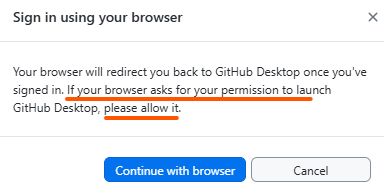
Note: the sign-in process opens a browser window to authenticate with GitHub. During the process, you will be asked for permission to allow GitHub Desktop to access your account. This is necessary for GitHub Desktop to perform actions on your behalf, which is essential for its functionality. After successful authentication, you need to allow the browser to return to GitHub Desktop to complete the sign-in process.
4. Configure Your Identity
Git needs to know your name and email so it can label your commits. These information are typically copied from your GitHub account, so make sure to use the same email address.
Alternatively, you can later set and change these values in GitHub Desktop:
- In GitHub Desktop, go to File → Options → Git (Windows) or GitHub Desktop → Preferences → Git (macOS).
- Enter your Name and Email (use the same email as your GitHub account).
5. Verify Your Setup
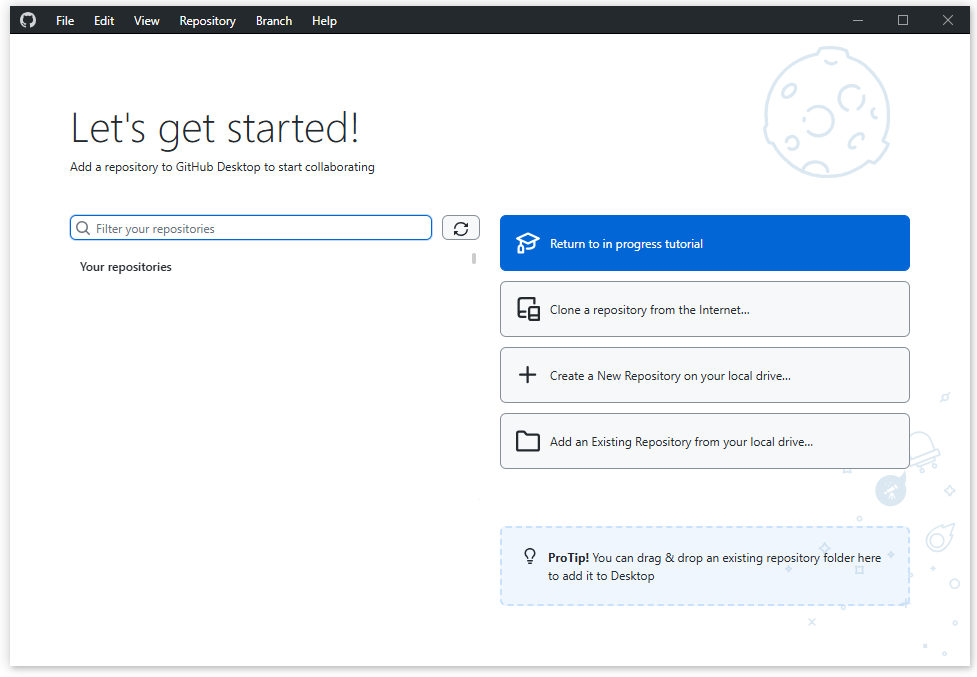
Your GitHub Desktop should now be ready to use for the workshop exercises and look like this:
Confirmation
Take a screenshot of your GitHub Desktop Account Settings (showing you are signed in) or simply confirm to your instructor that everything is ready.