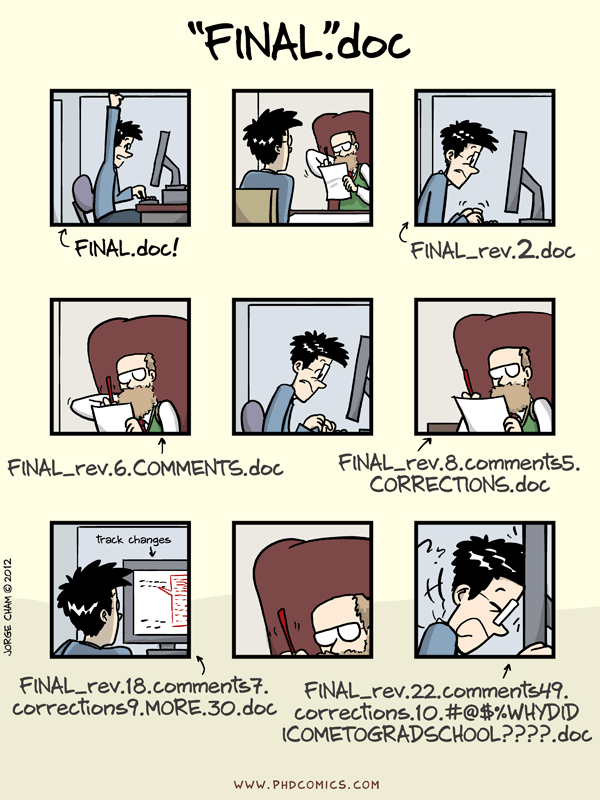
Image 1 of 1: ‘Comic: a PhD student sends "FINAL.doc" to their supervisor, but after several increasingly intense and frustrating rounds of comments and revisions they end up with a file named crazily"’
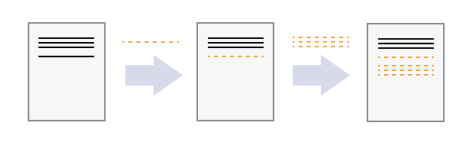
Image 1 of 1: ‘A diagram demonstrating how a single document grows as the result of sequential changes’
Figure 3
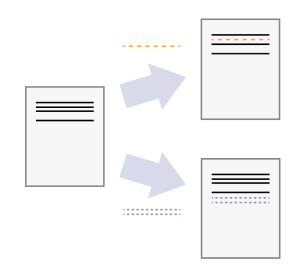
Image 1 of 1: ‘A diagram with one source document that has been modified in two different ways to produce two different versions of the document’
Figure 4
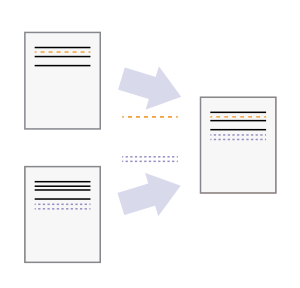
Image 1 of 1: ‘A diagram that shows the merging of two different document versions into one document that contains all of the changes from both versions’
Figure 5
Image 1 of 1: ‘git summary’
Figure 6
Image 1 of 1: ‘git logo’
is a
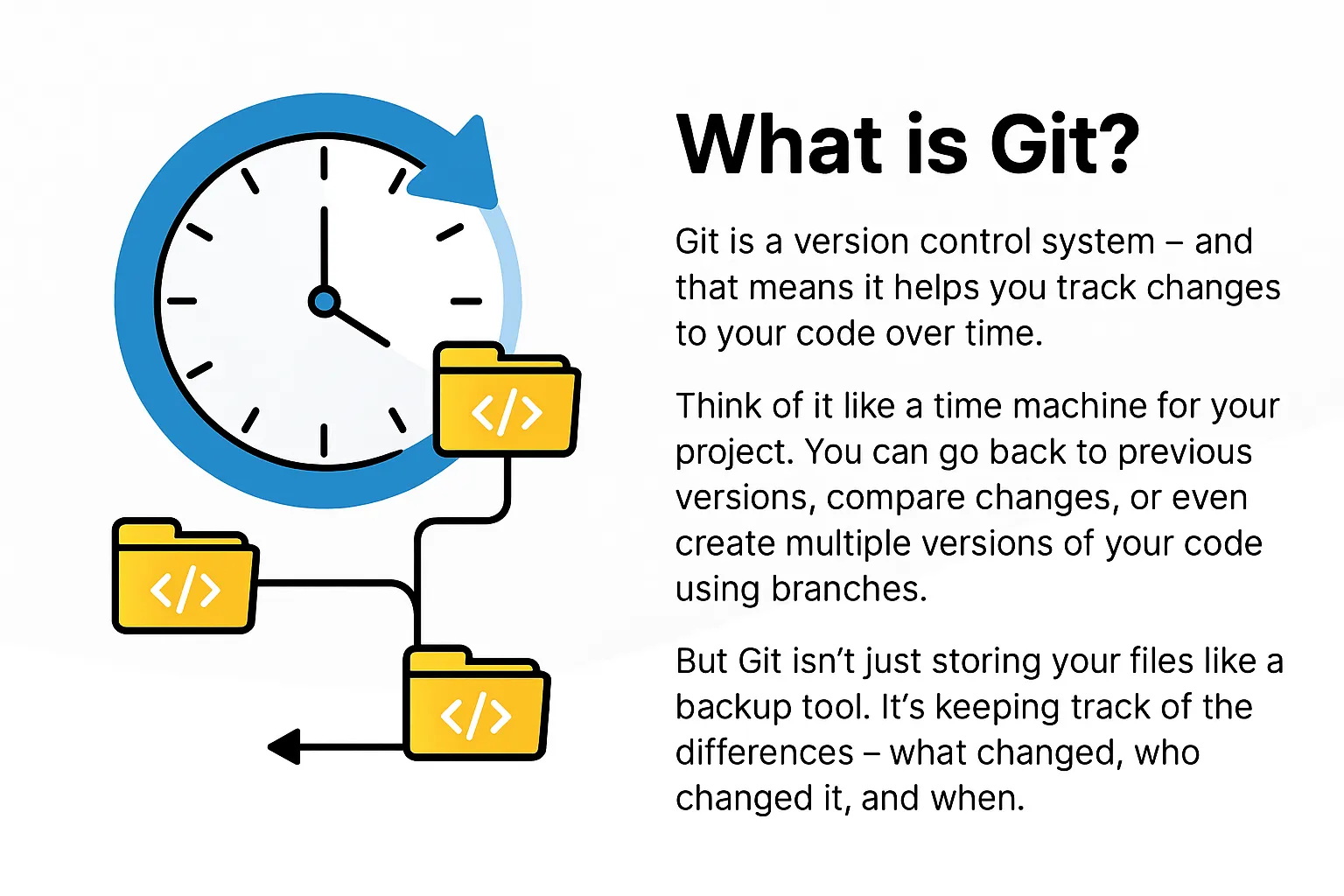
version control system — a tool that tracks changes to
your files over time. Think of it as an “undo history” on steroids: you
can go back to any previous version, see exactly what changed, and even
work on multiple versions in parallel.
Figure 7
Image 1 of 1: ‘Git commit history showing a linear sequence of commits with messages and timestamps.’
Git commit timeline
Figure 8
Image 1 of 1: ‘GitHub logo’
is a web platform that hosts git repositories online. It adds
collaboration features such as pull requests, issues, and project boards
on top of git’s version control. So GitHub is not git itself, but a
service that uses git to manage repositories in the cloud. Its
collaborative features bring git’s power to the next level, making it
easier for teams to work together on projects and for individuals to
share their work with the world.
Figure 9
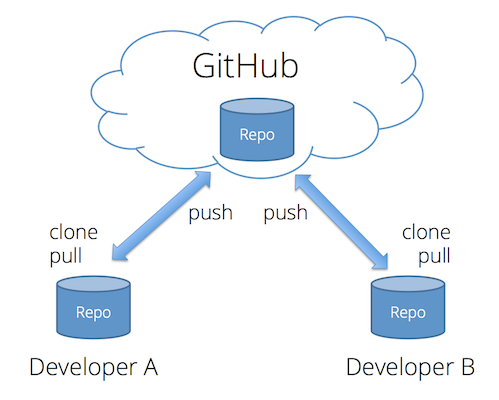
Image 1 of 1: ‘local and remote repositories with push and pull arrows.’
Relationship between local and remote
repositories, with arrows indicating push (local → remote) and pull
(remote → local) actions. (D. Stearns,
05.03.2026)
Figure 10
Image 1 of 1: ‘Screenshot of GitHub showing the 'New Repository' button.’
Figure 11
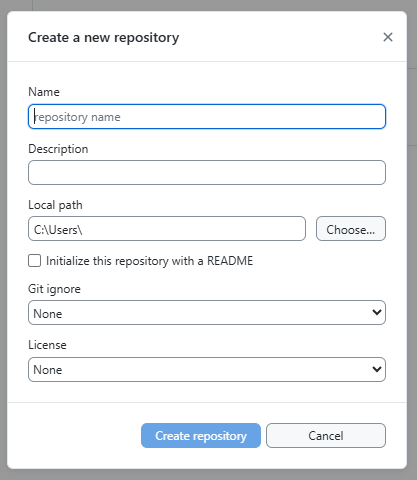
Image 1 of 1: ‘Screenshot of GitHub Desktop showing the 'New Repository' button.’
Figure 12
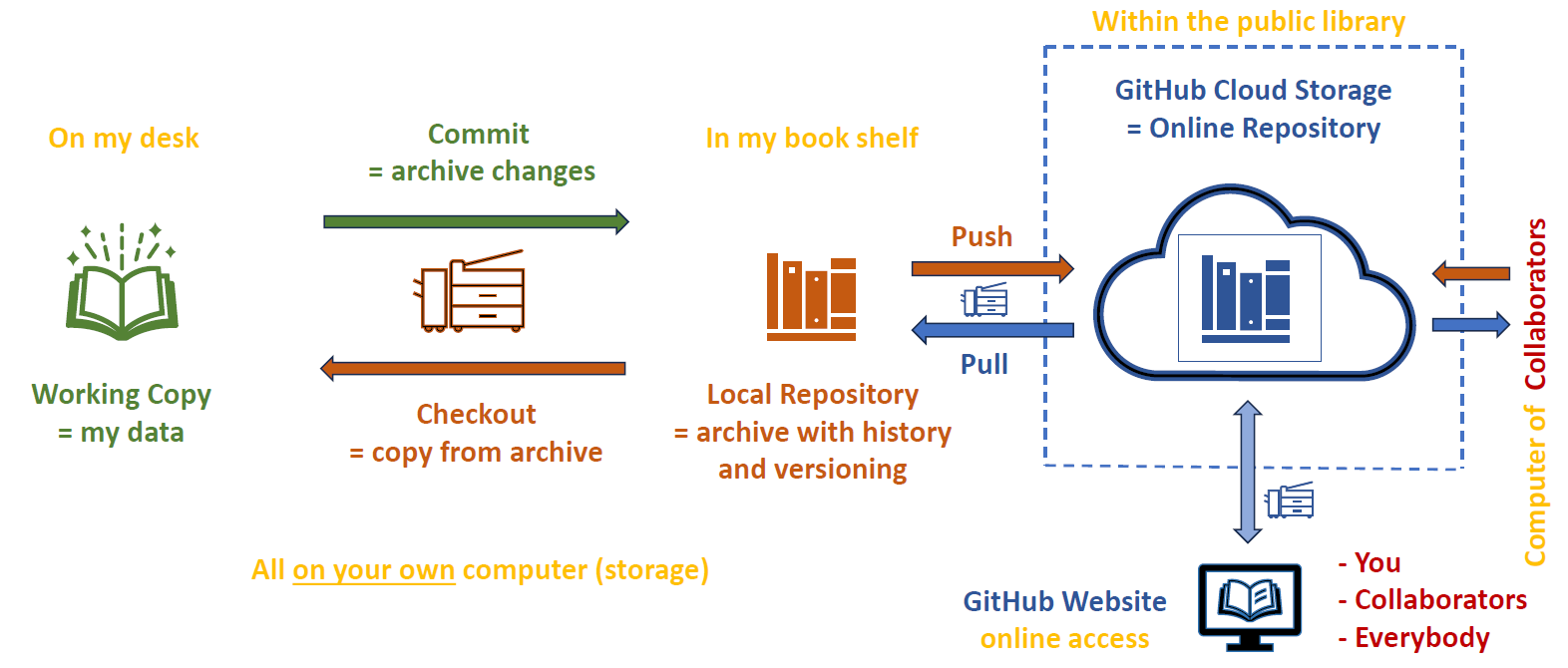
Image 1 of 1: ‘Diagram of the git workflow showing the working directory, local repository, and remote repository with arrows indicating the flow of changes.’
Illustration of the git workflow showing the
working directory, local repository, and remote repository with arrows
indicating the flow of changes: edit (working directory), commit (local
repository), push (remote repository), and pull (working
directory).
Figure 13
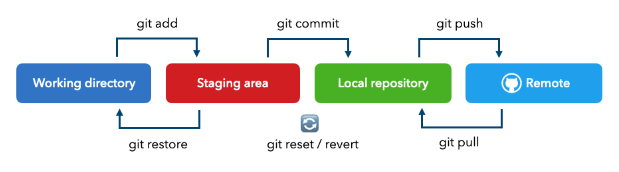
Image 1 of 1: ‘git workflow including the staging step, showing the working directory, staging area, local repository, and remote repository with arrows indicating the flow of changes.’
Git workflow including the staging step, showing
the working directory, staging area, local repository, and remote
repository with arrows indicating the flow of changes. (i2tutorials.com,
05.03.2026)
Figure 14
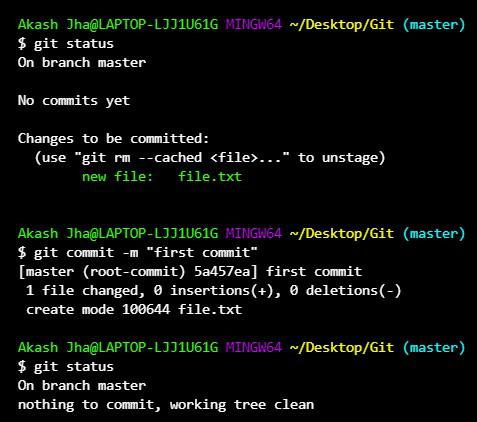
Image 1 of 1: ‘Screenshot of a Bash terminal showing git commands 'status' and 'commit' being executed.’
Figure 15
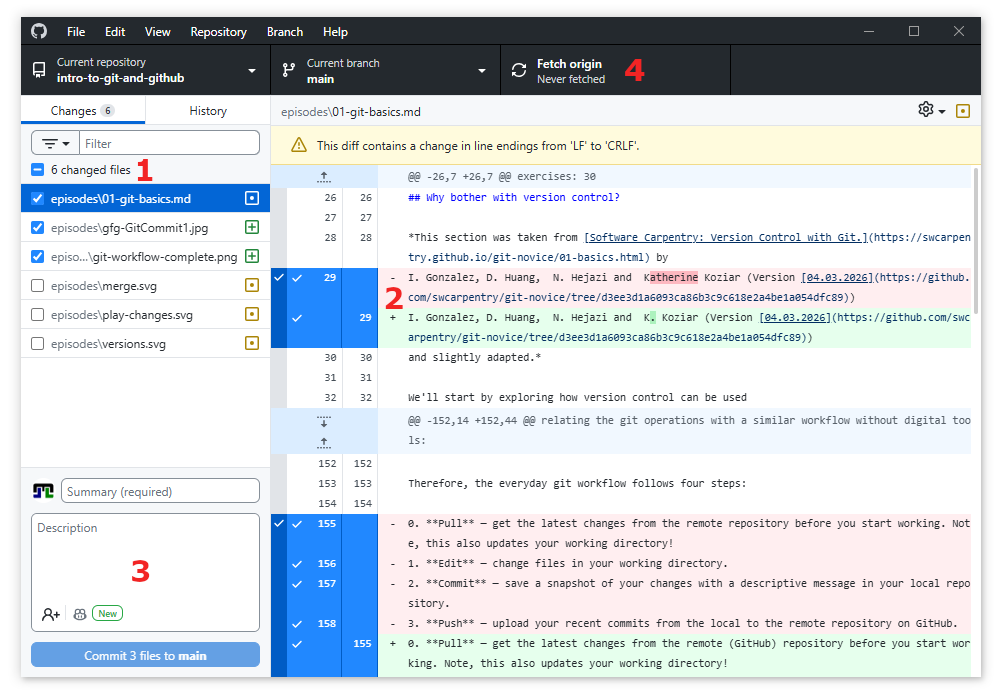
Image 1 of 1: ‘Screenshot of GitHub Desktop showing the Changes tab with a list of modified files and options to stage them for commit.’
Screenshot of GitHub Desktop showing the Changes
tab with a list of modified files and options to stage them for
commit.
Figure 16
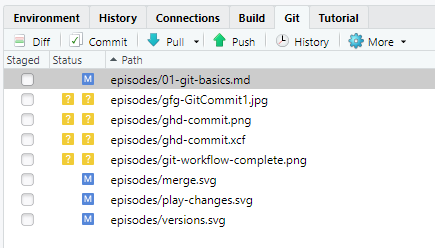
Image 1 of 1: ‘Screenshot of RStudio showing the git pane with modified files and options to stage, commit, and push changes.’
Screenshot of the RStudio git pane with modified
files and options to stage, commit, and push changes.
Figure 17
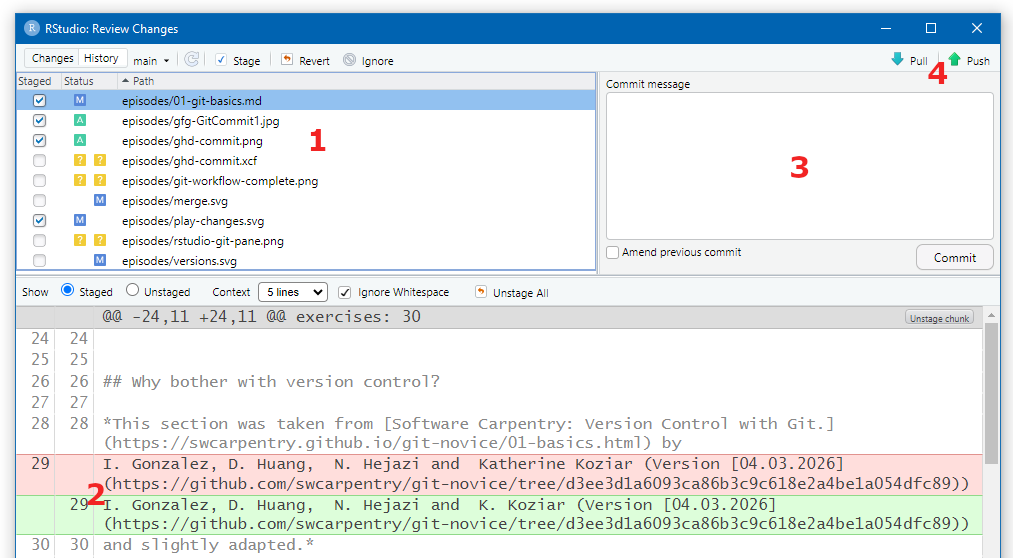
Image 1 of 1: ‘Screenshot of RStudio showing the commit dialog with staged changes and commit message box.’
Screenshot of the RStudio commit dialog showing
the staged changes and commit message box.
Figure 18
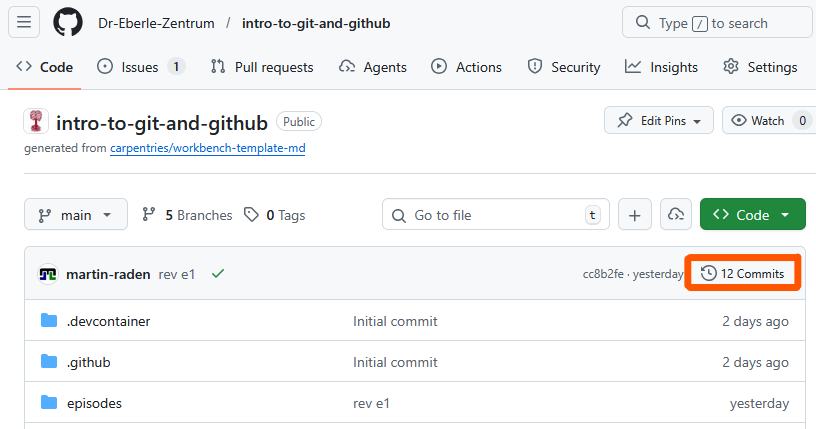
Image 1 of 1: ‘Screenshot of GitHub showing the commit history with a list of commits and a diff view of a selected commit.’
Figure 19
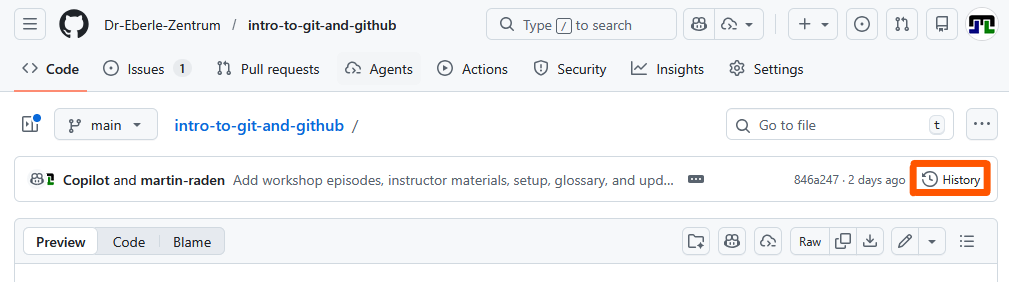
Image 1 of 1: ‘Screenshot of GitHub showing the file history with a list of commits affecting that file and a diff view of a selected commit.’
Figure 20
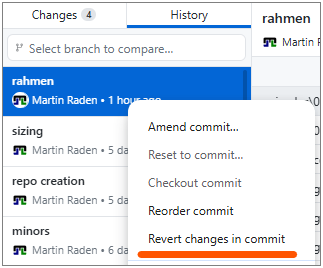
Image 1 of 1: ‘Screenshot of GitHub Desktop showing the History tab with a list of commits and a diff view of a selected commit.’
Figure 21
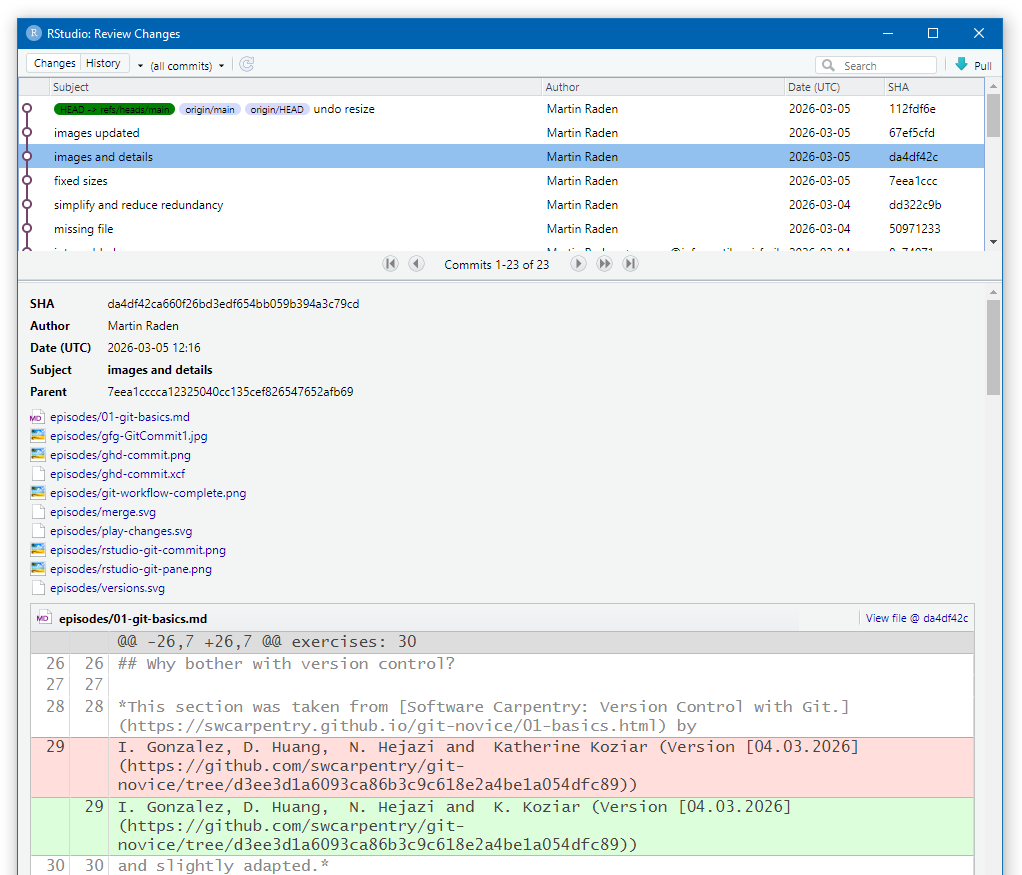
Image 1 of 1: ‘Screenshot of RStudio showing the git history pane with a list of commits and a diff view of a selected commit.’
Figure 22
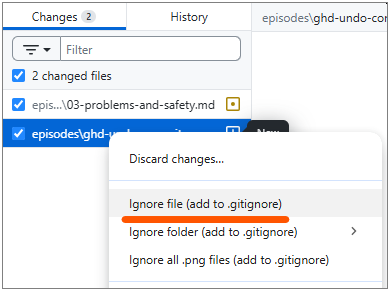
Image 1 of 1: ‘Screenshot of GitHub Desktop showing the context menu with the 'Ignore this file' option.’
Screenshot of GitHub Desktop showing the context
menu with the ‘Ignore this file’ option.
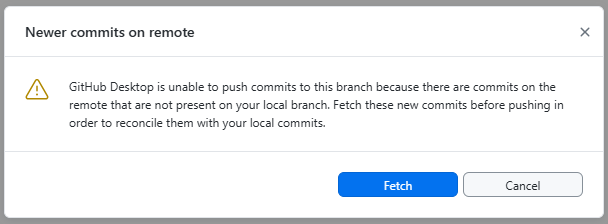
Image 1 of 1: ‘A screenshot of GitHub Desktop showing a notification that says "Your branch is out of date with the remote branch. Please pull the latest changes before pushing."’
Figure 2
Image 1 of 1: ‘A diagram that shows the merging of two different document versions into one document that contains all of the changes from both versions’
Figure 3
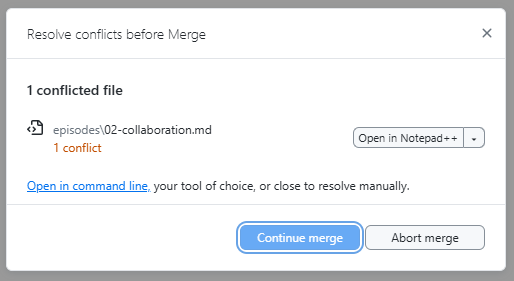
Image 1 of 1: ‘A screenshot of GitHub Desktop showing a notification that says "This branch has conflicts that must be resolved"’
Figure 4
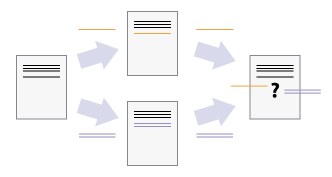
Image 1 of 1: ‘A diagram that shows two different document versions that both change the same line, resulting in a conflict that cannot be automatically resolved’
Figure 5
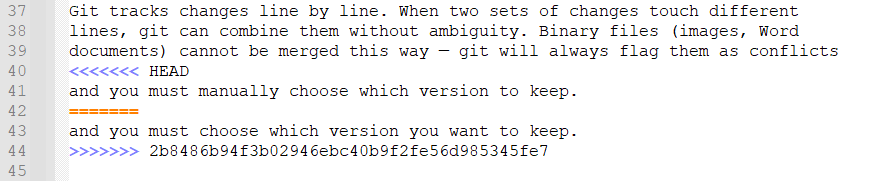
Image 1 of 1: ‘A screenshot of a text editor showing a merge conflict with the conflict markers highlighted’
Figure 6
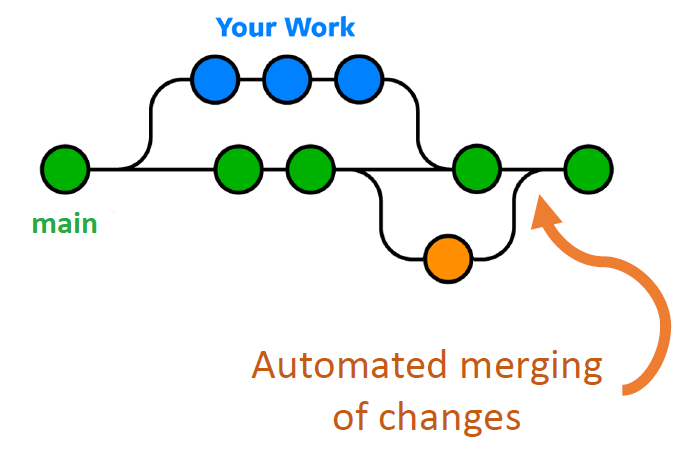
Image 1 of 1: ‘A diagram showing a directed acyclic graph (DAG) of commits with three branches (main in green and two development branches in blue and orange) with several commits on each branch and a merge commit that merges the blue branch into main’
An example of a DAG showing three branches (main
in green and two development branches in blue and orange) with multiple
commits within each branch and two merge commits that merge the
development branches into main
Figure 7
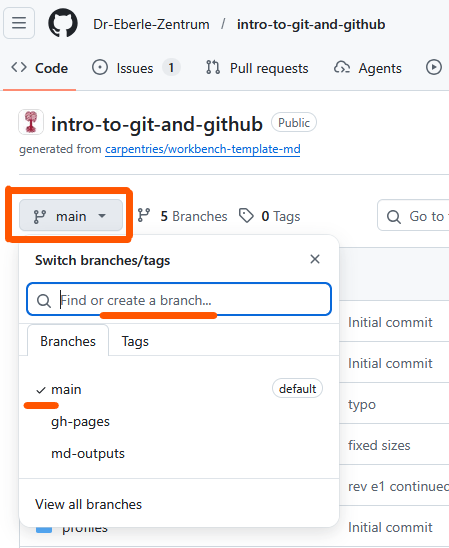
Image 1 of 1: ‘A screenshot of the GitHub website showing the branch dropdown with a new branch name being entered’
Figure 8
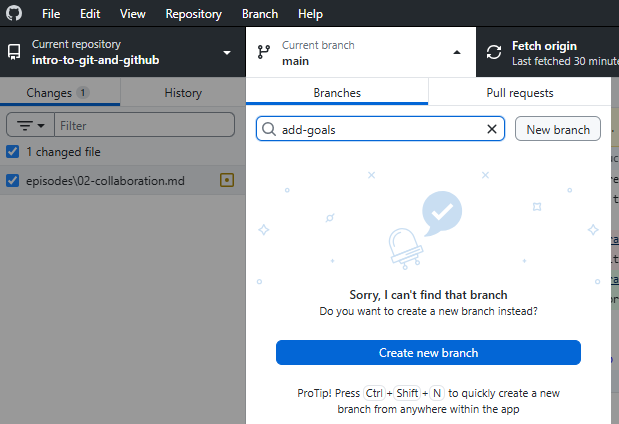
Image 1 of 1: ‘A screenshot of GitHub Desktop showing the "Create a branch" dialog with a new branch name being entered’
Figure 9
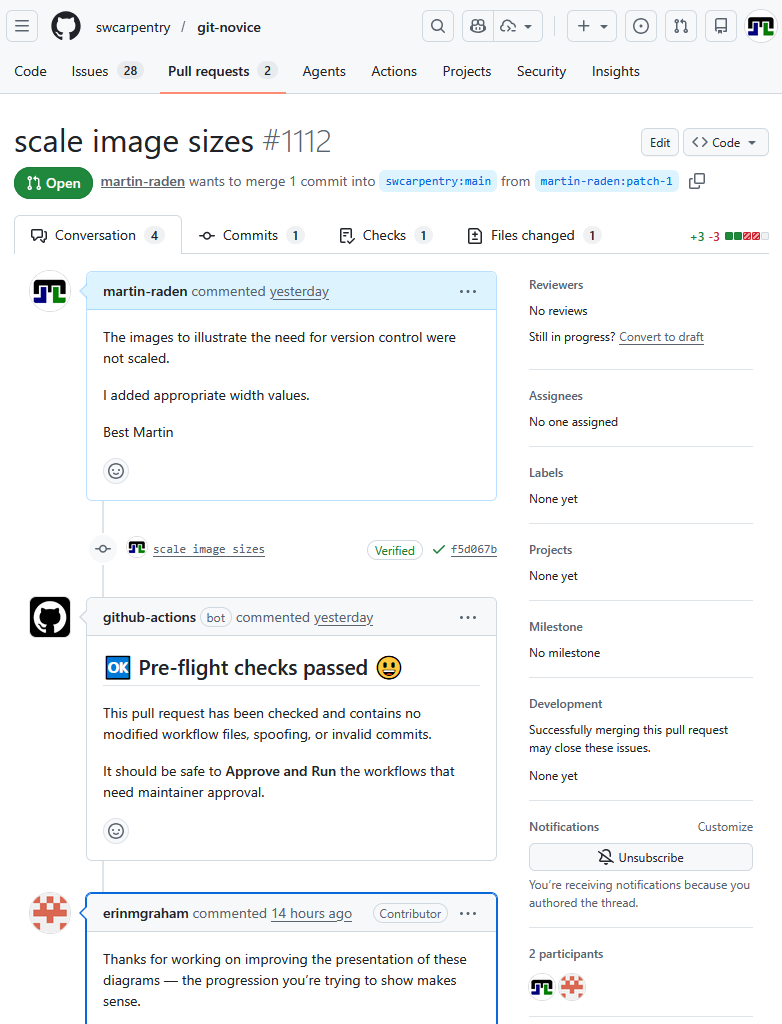
Image 1 of 1: ‘A screenshot of a pull request page on GitHub showing the conversation tab.’
Figure 10
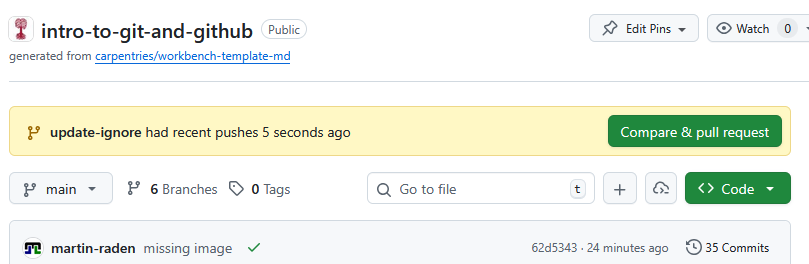
Image 1 of 1: ‘A screenshot of the GitHub website showing a notification about a recently pushed branch with a button to open a pull request’
Figure 11
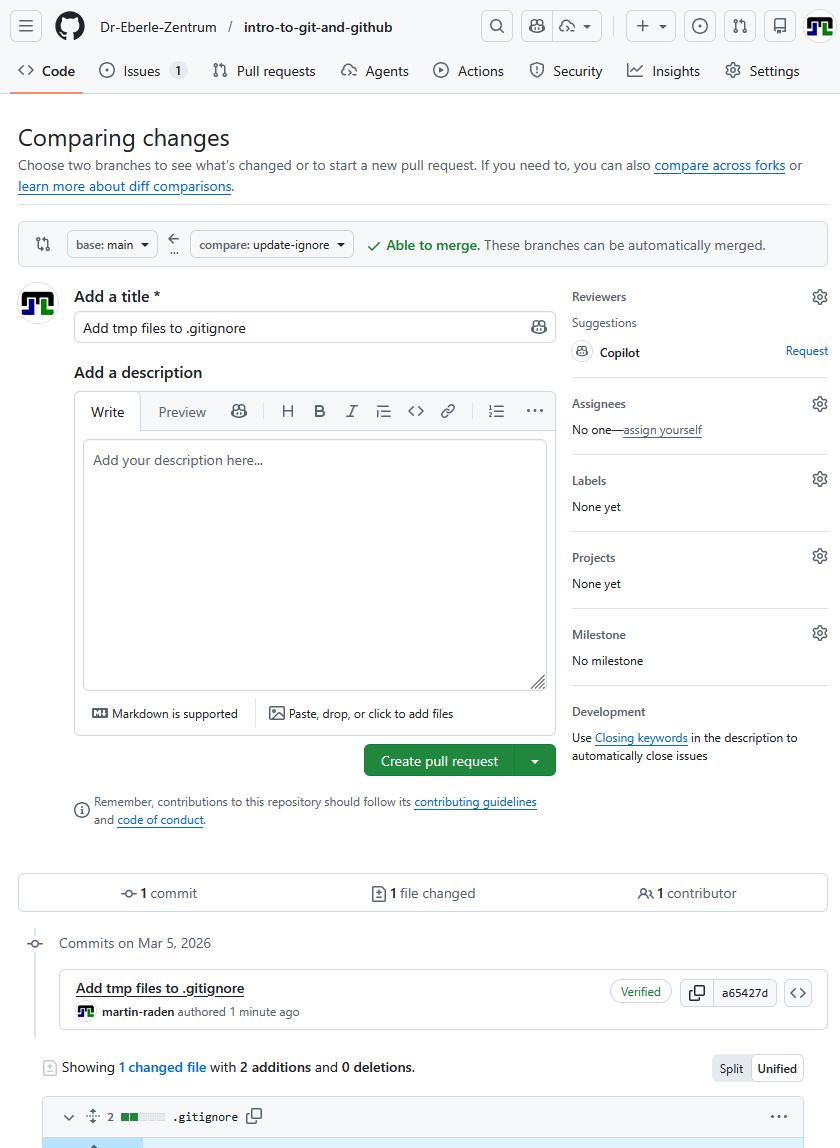
Image 1 of 1: ‘A screenshot of the GitHub website showing the pull request form with fields for title and description’
Figure 12
Image 1 of 1: ‘A screenshot of GitHub Desktop showing the "Create Pull Request" option in the Branch menu’
Figure 13
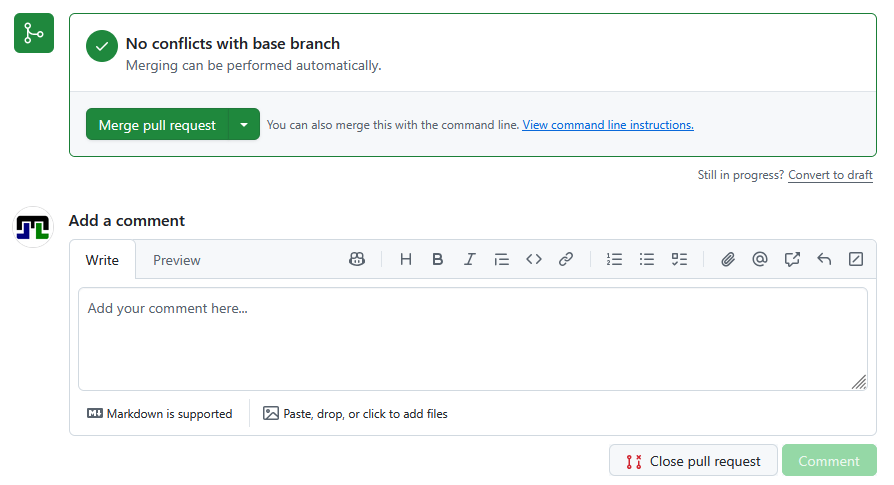
Image 1 of 1: ‘A screenshot of a pull request page on GitHub showing the "Merge pull request" button’
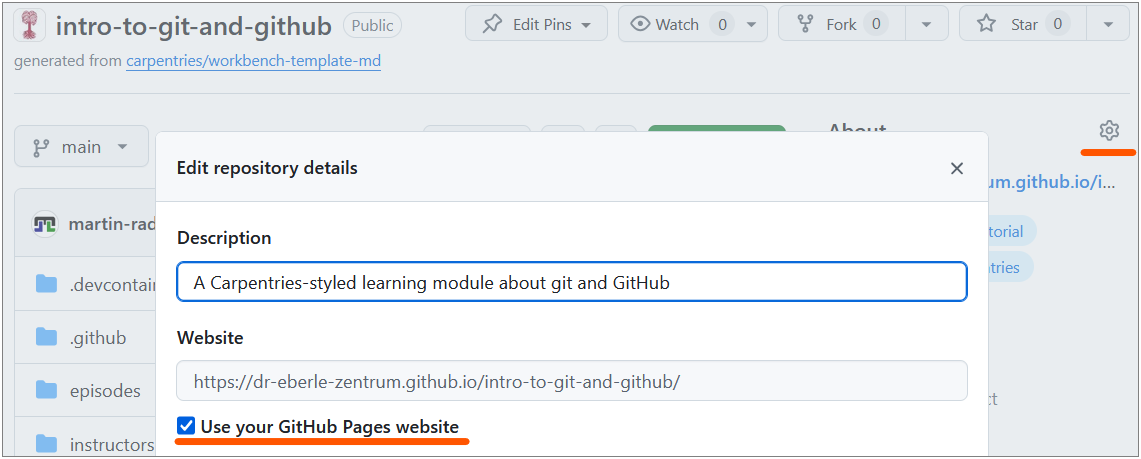
Image 1 of 1: ‘Screenshot of the 'About' section in the right sidebar of a GitHub repository, showing how to add a description and website URL.’
Figure 2
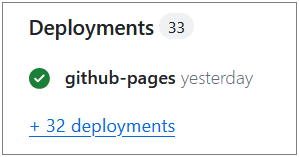
Image 1 of 1: ‘Screenshot of the 'Deployments' section in the right sidebar of a GitHub repository, showing the status of GitHub Pages builds and links to logs.’
Figure 3
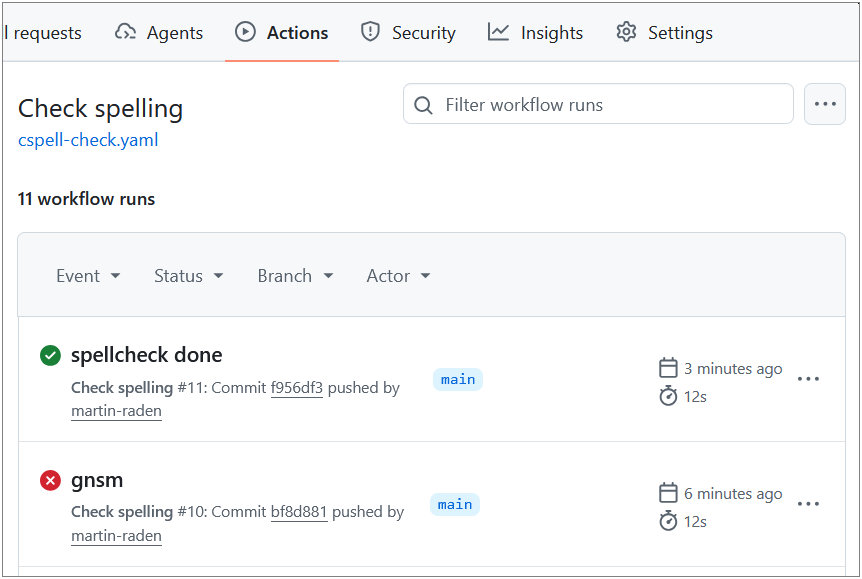
Image 1 of 1: ‘Screenshot of the 'Actions' tab in a GitHub repository, showing a list of workflow runs with their status (passed or failed).’
Figure 4
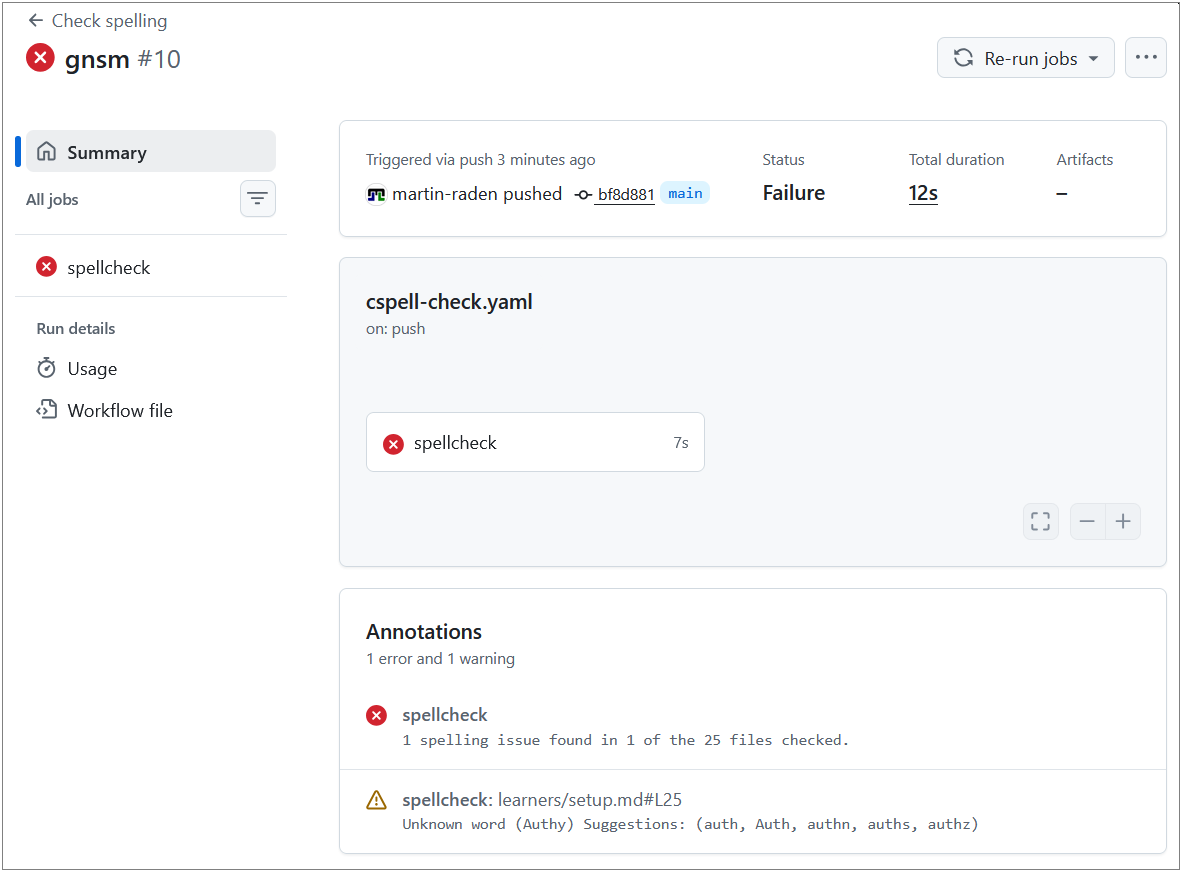
Image 1 of 1: ‘Screenshot of a failed spell-check workflow, showing the error message and logs.’
Figure 5
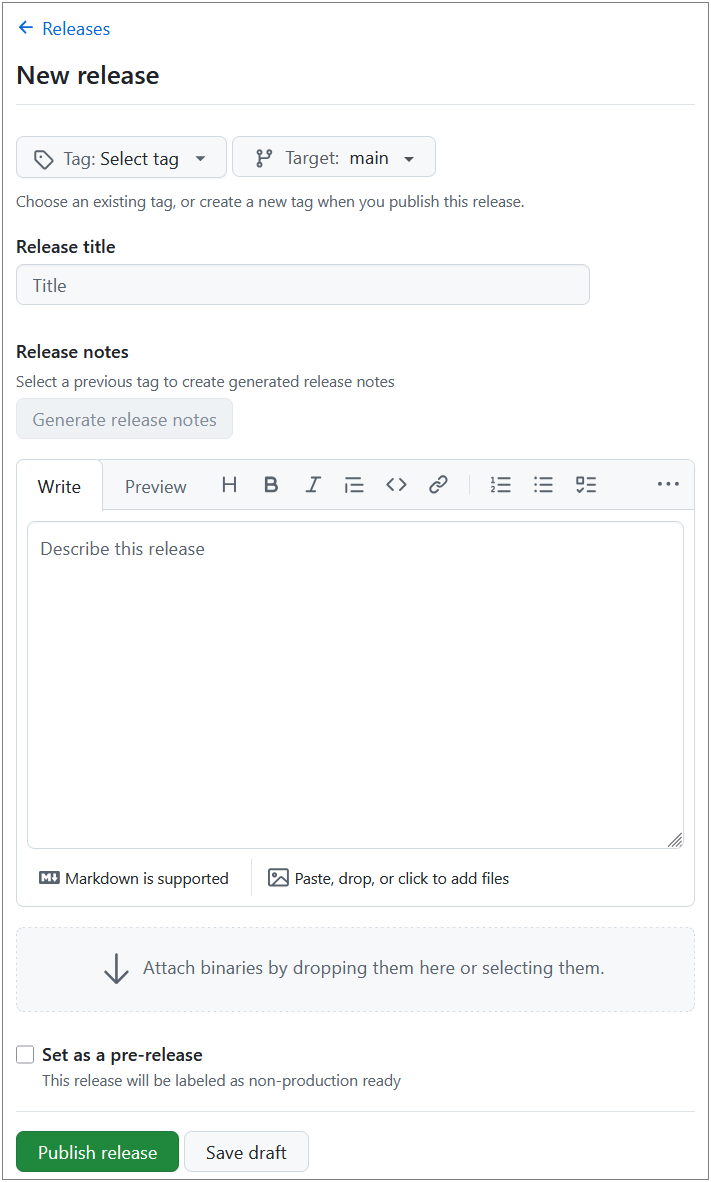
Image 1 of 1: ‘Screenshot of the 'Draft a new release' page on GitHub, showing fields for tag version, release title, and release notes.’

 is a
version control system — a tool that tracks changes to
your files over time. Think of it as an “undo history” on steroids: you
can go back to any previous version, see exactly what changed, and even
work on multiple versions in parallel.
is a
version control system — a tool that tracks changes to
your files over time. Think of it as an “undo history” on steroids: you
can go back to any previous version, see exactly what changed, and even
work on multiple versions in parallel.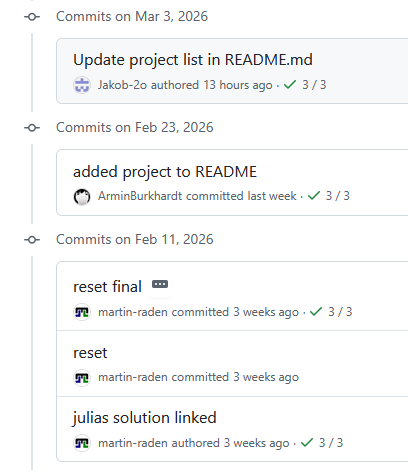
 is a web platform that hosts git repositories online. It adds
collaboration features such as pull requests, issues, and project boards
on top of git’s version control. So GitHub is not git itself, but a
service that uses git to manage repositories in the cloud. Its
collaborative features bring git’s power to the next level, making it
easier for teams to work together on projects and for individuals to
share their work with the world.
is a web platform that hosts git repositories online. It adds
collaboration features such as pull requests, issues, and project boards
on top of git’s version control. So GitHub is not git itself, but a
service that uses git to manage repositories in the cloud. Its
collaborative features bring git’s power to the next level, making it
easier for teams to work together on projects and for individuals to
share their work with the world.